
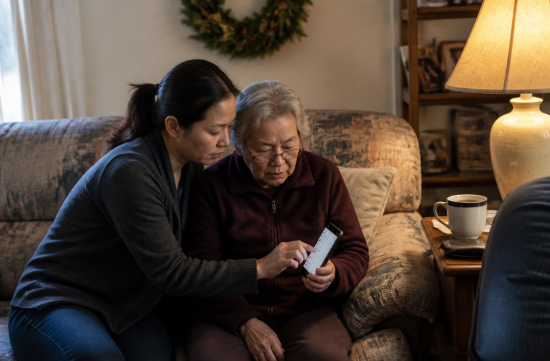
You may have seen your parents holding their phones far away to read texts. They often end up saying, "Can you read this for me?"
This isn't just about buying them a new phone. The features are already available on their current phones, and it can be done in the time it takes to drink a cup of coffee.
If you plan to visit during Thanksgiving or Christmas, make sure to do this for them. I've selected just five settings.
The first is, of course, text size. For iPhones, go to Settings, Accessibility, Display & Text Size, and then Larger Text, and slide the slider to adjust.
If the phone is set to Korean, Accessibility will appear as "손쉬운 사용". If that's still not enough, enable Larger Accessibility Sizes on the same screen for even larger text.
Also, try turning on Bold Text. Even if you don't increase the size much, the text will appear bolder, making it easier to read.
For Samsung Galaxy phones, go to Settings, Display, and you'll find the Font size and style slider. Other Android phones may have different menus depending on the manufacturer, so it's quickest to type "font" or "글꼴" in the search bar at the top of the settings.
One thing to be cautious about is that some apps may have fixed text sizes, so even if you change the system settings, the text won't get larger in those apps.
So don't just change the settings and stop there. Open the apps your parents use the most, like KakaoTalk, messaging, and banking apps, and check them one by one. If the text hasn't increased, look for the text size menu within those app settings.
The second setting is to enlarge the entire screen. If they can read the text but keep pressing the wrong buttons, this is the solution.
For iPhones, go to Settings, Display & Brightness, and then Display Zoom. Select Larger Text and tap Done, then choose Use Zoomed. For Galaxy phones, it's called Screen zoom in the Display menu, but the name may vary slightly by version.
If this seems too complicated, there's a simple mode available. iPhone's Assistive Access is available on iOS 17 and later, which keeps frequently used functions like phone, messages, photos, and music large and easy to access.
However, you will need to set a separate passcode, and to exit, you must press the side button three times and enter that code. For someone who uses various apps, this might feel restrictive, so I would only use it if absolutely necessary.
For Galaxy phones, enabling Easy mode in the Display menu will enlarge both text and icons. However, this may not be available on some lower-end models.
The third setting, which I consider the most important, is blocking unknown numbers. This takes precedence over text size.
According to the FBI's Internet Crime Complaint Center (IC3) data from 2025, victims aged 60 and older reported losses totaling $7.7 billion. I had to read that number twice when I first saw it.
The FTC has a different method of aggregation, estimating the reported losses for the same age group in 2025 at around $3 billion. The median loss for phone scams was $3,000.
For iOS 26 iPhones, go to Settings, Apps, Phone, and select Silence under Screen Unknown Callers. For earlier versions, just enable Silence Unknown Callers in Settings, Phone.
There's also a call screening option in the same menu that asks for the purpose of the call before it rings. If your parents struggle with English prompts, I think Silence is the better option.
However, there's something you must do together. Save the numbers for their doctor's office, pharmacy, dentist, and frequently visited hospitals in their contacts; otherwise, important calls may end up in voicemail.
For Android, it varies by model, so look for spam or unknown options in the phone app settings. Again, using the settings search bar is the quickest way.
The fourth setting is emergency information. On iPhones, go to the Health app, tap on the profile picture, and enter allergies, medical conditions, medications, blood type, and emergency contacts in Medical ID.
Make sure to enable Show When Locked. This way, paramedics can see it without unlocking the phone.
Also, show them that pressing the side button for a long time connects to Emergency SOS. For Galaxy phones, you can find a similar menu by typing "emergency" or "긴급" in the settings search bar.
The last fifth setting is location sharing. On iPhones, you can share your location with family through the Find My app, making it much easier to find the phone if it's lost.
However, don't enable this secretly. It's better to explain, "I'm doing this so you won't get lost and can find your phone," and get their consent. Adults have a right to privacy too.
Once you're done, have your parents try making a call, reading a text, and sending a photo themselves. It would also be helpful to write down the changes in large text on a piece of paper.
It's not your parents' fault if they are unaware of these features and are struggling. The menu names may vary slightly by phone version, so if they can't find something, they should use the settings search bar. Personally, I would ask for their phone before choosing gifts this year-end.
 puffp8








 Toaster Pizza Magic Show |

 DO Main TODAY |

 Caribbean |

 tredolo |

 Anjollinya Blog |

 Baguette Blog |

 American Blog Forge |

 OC Real Estate Business Information |

 Total Beauty |

 Koreab Date |
 nova nova |
 figtop |
 Yahoo LALA |
 Korea News Economic News |
 calvor |
 timistic |
 Lee Sang Don |
 victoria jung |
 The Long Shot |
 Univ Student |
 Bald Eagle Brothers |
 Tora Tora |
 pandaworld |
 lumix88 |
 choi family |
 Lansinger |
 Giant Squid and Sweet Potato Soup |
 InJung Gu |
 cake money |
 swiftlane |