
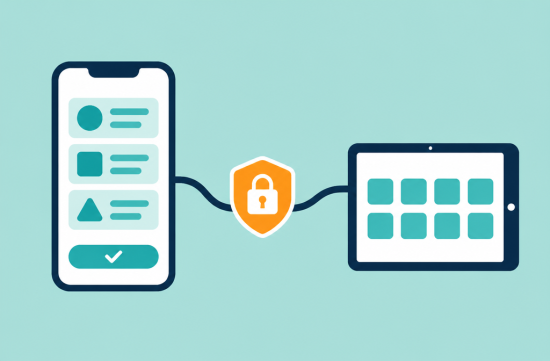
Last week, my child came to me with a tablet and said, "Dad, please help me create a Google account." Honestly, I'm confident with these kinds of setups. I've handled everything from our home Wi-Fi to the printer.
However, when I actually tried to do it, it wasn't just a matter of clicking the sign-up button. There are specific rules for accounts for kids under 13. Today, I'll outline the steps I took.
First, the basics. According to Google's help page, kids aged 13 and older can create their own accounts. Conversely, for those under 13, a parent must create the account, which is managed through Family Link.
There are two main methods. One is to install the Family Link app on the parent's phone to create the account. The other is to create the account during the initial setup of a new Android device for the child.
I used the app. I opened Family Link, clicked on "Create a Google Account for Kids," and then continued from there. Up to this point, anyone can do it.
On the next screen, you enter the child's name, birth date, and gender. Then, you set up the Gmail address and password for the child.
Here's a tip: make sure to enter the birth date accurately. Any settings that change when the child turns 13 will be based on this date.
The password should be something the child can remember but not too easy. I worked with my child to set it up and also noted it down separately.
Next is the parental consent step. In the U.S., parental consent is required when handling information for children under 13, so Google makes sure to include this process.
The standard method for consent is to enter the parent's Google account password. There's also an option to consent using a credit card.
When asked for the card, it can be a bit startling at first. According to Google, a temporary authorization may be placed to verify the card's validity, but no actual charges will be made.
If you're setting up a new device, the process is slightly different. On the screen prompting you to log in with a Google account, you can click to create an account. If that button isn't visible, select another option to choose the child's account.
Google states that the entire process takes about 15 minutes. I finished quicker than that, although I didn't count the time my child spent picking a profile picture.
After creating the account, the really important part is the subsequent settings. Through the Family Link app, you can manage the child's device usage time, app installation approvals, and location tracking.
I started by enabling app installation approvals. When my child tries to download an app from Google Play, I receive a request for approval on my phone.
Similarly, you can set up approval requests for purchases. However, according to Google's help page, this purchase approval only applies to purchases made through the Google Play payment system.
This means you shouldn't assume that it will block all transactions made through other payment methods within apps. I was surprised to read this myself.
It's convenient to set usage times separately for school days and weekends. There's also a feature to lock the device during sleeping hours. I've found this feature particularly useful on snowy days when we're stuck at home.
Now, let's move on to the topic many parents are curious about: turning 13. When a child approaches 13, Google sends an email to both the child and the family manager.
In the past, when a child turned 13, they could disable the management features themselves. This January, Google faced criticism for sending an email directly to 12-year-olds about this.
Ultimately, Google changed its policy. Now, minors under management need parental approval to turn off management features.
Currently, Google's help page states that parental approval is required to stop management until the child turns 18. However, some pages still have the old information, so be sure to check the Family Link app before your child's birthday.
If your child has already created an account separately after turning 13, you can still add management features to their existing account later.
To summarize my experience: enter the birth date accurately, consent with the parent's password, and enable app installation and purchase approvals right away.
And one more thing: don't just set it up and walk away. It's much more effective to sit down with your child and discuss why these rules are in place.
Initially, my child complained that the approval request feature felt like surveillance. But after a few times, they now come to me first to ask if an app is okay. I think that means my parenting education is going pretty well.
The screen layout may vary slightly from device to device and at different times. If you get stuck, you can open Google Family Link's help page and follow along step by step.
If it were up to me, I would definitely sit down with my child to create their first account together. It's a 15-minute investment that brings peace of mind for years. This is one setup I know I can do well.
 LiveBold
 HarleyDavis



 Augusta 90 |

 Pointy |

 rissa |

 Gomo Nim |

 lattepop |

 Mr. Largo |


 Darnignac |

 See It |


 American Golf Course Travelogue |
 gravity |
 714 Success Era Real Estate |
 Investment Beginner Company Information Encyclopedia |
 musicque |
 The Gelaton |
 ovelion |
 Chicagonian |
 Freedom Yea |
 AZ Road Master |
 glenix39 |
 Something is popping in the situation |
 orvella |
 vella |
 comets |
 Banana |
 Yes Dorian |
 Minnesota Sonata N |
 zentar |
 mykiwi blog |
 shinramen wang |