

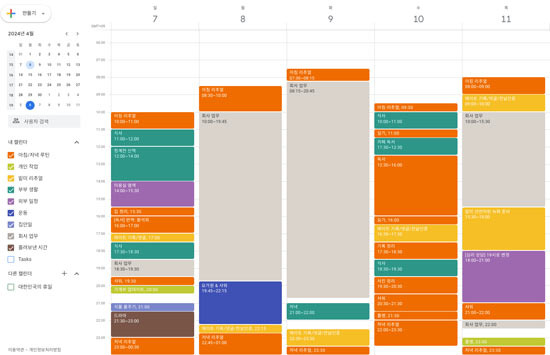
Adding a conference call to Google Calendar isn't a big deal, but if you make a mistake in processing, you could get in trouble with your boss and mess up the schedule with the client.
Let me explain how I do it in practice.
First, go to Google Calendar and click on the date directly.
Instead of searching for the create button, just click on the time slot; it's the quickest way.
In the title, don't write something vague like "Meeting"; it's better to include the company name and the purpose.
For example, ABC Law – Website Redesign Planning Call. This makes it much easier to search later.
The most common mistake when setting the time is the time zone. Mixing Eastern, Central, and Pacific time can lead to issues.
If you're not in the same region, always double-check whether the client is in EST or CST. Keeping the time zone display on the calendar is also a good idea.
There's a guest addition field on the right. Enter the client's email address accurately there.
Check for any spaces when you copy and paste. If there are multiple people, enter one per line and hit enter. If there's a typo here, the invite won't go through.
For the video link, it's best to click the Google Meet button to generate it automatically.
Many times, people forget to copy and paste the link separately. If you're using Zoom, it's safer to place the Zoom link at the top of the description since that's the first place the client will see.
In the description, at least write one line about the purpose of the meeting. This way, the client can prepare and join. Sending just a link without any explanation seems insincere.
When you hit save, it will ask if you want to send the invite. Click send. After sending, you can confirm if the recipient accepted by checking the email notification.
If they haven't accepted, it's practical to send a reminder a day before.
Final tip: If it's a recurring meeting, set the recurrence from the start.
This is much more stable than creating it anew each time.
Also, if you develop the habit of double-checking the email address, time, and time zone after creating the schedule, you'll avoid almost all mistakes.
Once you get into this habit, clients often say things like, "Your scheduling is very organized."
I hope this information is helpful to those who need it.







 eatontown blog |
 Toaster Pizza Magic Show |
 US Embassy |
 fortbliss |
 Folding Instructions |
 U.S. Weather Bureau News |
 Things to know |
 Premium Gas Camp |
 Texas Migration Story |
 Texas Real Estate Blog |
  Tonky |
  viroma |
  cookie |
  Live and that's it |
  Alright Twain |
  HAWAII Korean Church News |
  Amore |
  linex |
  Balancework |
  laro90 |
  MEDBIO American Doctor Blog |
  SWAT TEAM BLK |
  DREAM BIG |
  frostbite |
  330 Forever My Love |
  El Dorado |
  dralix58 |
  Gorama Round |
  Skydiving |