
When you forget your WordPress admin password, changing it directly in phpMyAdmin is simpler than you might think.
However, it's important to proceed step by step accurately. If you make a mistake, it could break your site, so just follow along calmly.
First, log in to cPanel on GoDaddy. On the cPanel main screen, find the Databases section and click on phpMyAdmin. A new window or tab will open with the phpMyAdmin interface.
On the left, you will see a list of databases. Here, you need to select the database that WordPress is using. It usually contains 'wp' in the name, but not always. If you're unsure, go to the File Manager in cPanel and open the wp-config.php file located in public_html. The DB_NAME entry inside is the actual database name. Click on the database that matches that name in phpMyAdmin.
Once the database is open, a list of tables will appear. Look for the wp_users table. The prefix may not be 'wp_'. It could be something like abc_users, but the table ending in 'users' is where the admin account is located.
Clicking on wp_users will show the list of users. Here, find the admin account. It is usually where user_login is either 'admin' or your previously used admin ID. Click Edit on that row.
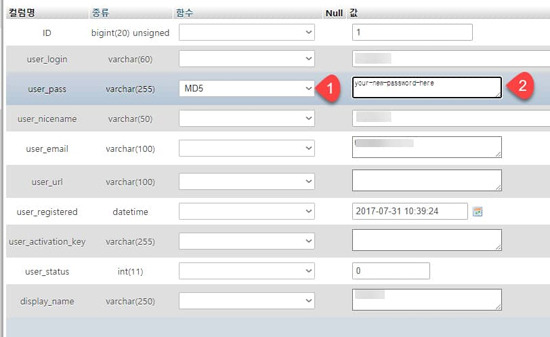
In the edit screen, the user_pass field is the most important. You need to enter the new password here. However, you cannot just enter the password as is. There is a dropdown on the right labeled Function, and you must select MD5 from it. Then, enter the new password in the Value field. For example, something like mynewpassword123.
Do not change any other fields, scroll down, and click the Go button. This completes the password change.
Now, access your domain/wp-admin in your browser. Use your existing admin ID and the new password you just entered. If you log in successfully, you're all set. After logging in, it's recommended to change the password again in the WordPress admin screen for security. This time, it will be saved using a more secure encryption method automatically.
If you can log in but do not see the admin menu, it could be a permissions issue. In that case, check the wp_usermeta table to see if the wp_capabilities value for that user ID includes 'administrator'. However, in most cases, just changing the password will resolve the issue.
In summary, there are three things to do in phpMyAdmin: select the correct database, find the admin account in the users table, and change user_pass to the new password using MD5. If you follow this order, recovering your WordPress admin is not difficult.







 Living Economy Information Blog |
 U.S. Weather Bureau News |
 California Kangaroo |
 Reggae Party |
 Tarzan's Joyful Imagination |
  Tonky |
  viroma |
  cookie |
  Live and that's it |
  Alright Twain |
  eatontown blog |
  HAWAII Korean Church News |
  Amore |
  linex |
  Balancework |
  laro90 |
  MEDBIO American Doctor Blog |
  SWAT TEAM BLK |
  DREAM BIG |
  frostbite |
  330 Forever My Love |
  El Dorado |
  dralix58 |
  Gorama Round |
  Skydiving |